 SmartBMS Utility
Support
Troubleshooting
Most connection problems come down to one of two things. Both take a couple of minutes to check yourself, and both give our support team something concrete to work with if you still need to email us.
01
Export a debug log
Debug mode records everything the app does after you turn it on, so you can capture the exact moment something goes wrong and send it to us instead of describing it from memory.
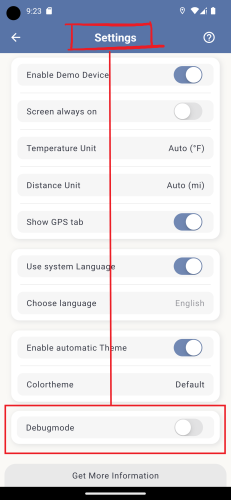
- 1.Open the app and go to Settings, in the top right corner.
- 2.Double-tap the "Settings" title at the top of the screen — a hidden "Debugmode" section unlocks at the bottom.
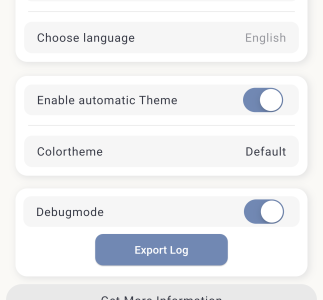
- 3.Turn on the switch, then go back to the device list and connect to your battery as usual.
- 4.Everything you do from here on is written to the logfile — go ahead and perform whatever action was causing the issue.
- 5.Once you've reproduced it, go back to Settings. The "Export Log" button is now active — tap it to save the file locally, or send it straight to us by email from the dialog that pops up.
02
Check your Bluetooth dongle with BLE Scanner
If pairing fails or data looks wrong, a free third-party app called "BLE Scanner" lets you inspect your BMS's Bluetooth module directly and compare it against a known-good setup.
- 1.Download the free "BLE Scanner" app from your device's app store (search "BLE Scanner", published by Bluepixel Technologies).
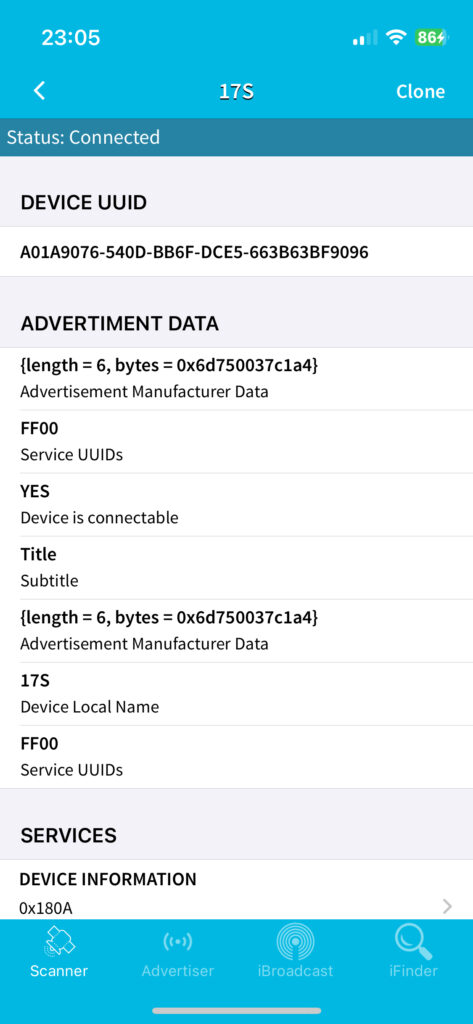
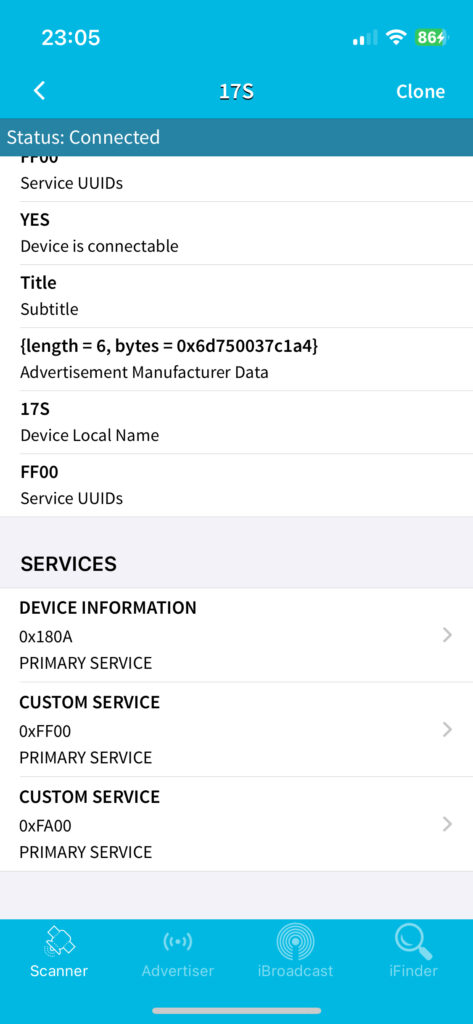
- 2.Open it, find your battery in the device list, and tap "Connect".
- 3.Check that your battery exposes a custom service with UUID 0xFF00 (and, on some boards, 0xFA00) — this is the same custom service SmartBMS Utility looks for.
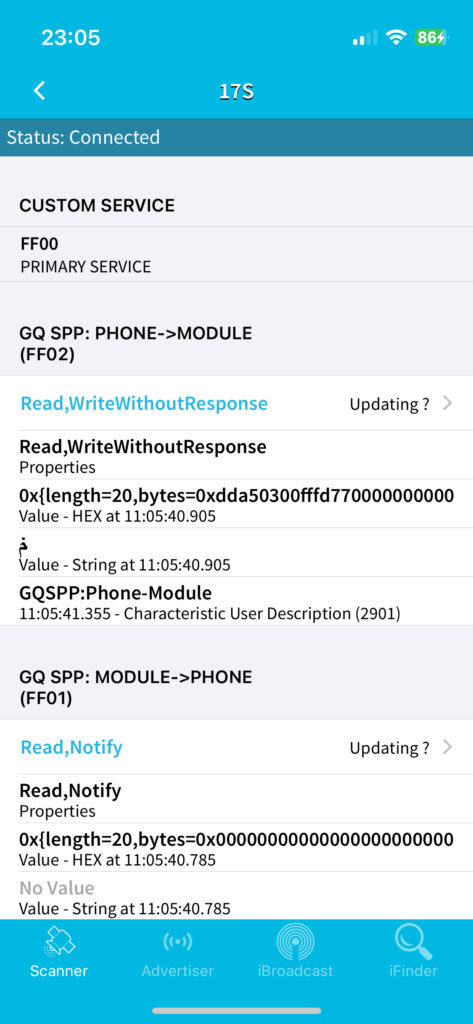
- 4.Under that service, confirm you see two characteristics: 0xFF02 (Write / WriteWithoutResponse — phone to module) and 0xFF01 (Notify — module to phone). If both are present and "Updating" when connected, your dongle is behaving correctly.
- 5.If either characteristic is missing, or the connection drops immediately, send us a screenshot of what you see — it's usually enough to tell whether it's a pairing issue or a faulty dongle.
Still stuck? contact@smart-bms.de